
EaseUS PDF Editor Pro has emerged as a powerful solution for Windows users who need comprehensive PDF editing capabilities without the complexity of enterprise level tools. This complete guide explores everything you need to know about this software including its features, functionality, pricing, and how it compares to competitors.
What is EaseUS PDF Editor Pro and Who Should Use It?
EaseUS PDF Editor Pro is a professional grade PDF editing application designed specifically for Windows operating systems. It provides users with the ability to create, edit, annotate, convert, and manage PDF documents with precision and ease. Whether you are a student managing academic papers, a professional handling business documents, a small business owner processing contracts, or a remote worker collaborating on projects, this software delivers the tools you need.
The platform serves multiple user categories effectively. Students use it to annotate lecture notes and edit assignments. Professionals leverage it for business report editing and document management. Freelancers utilize its conversion features to deliver client work in various formats. Organizations employ it for document workflow automation and secure file management.
Complete Feature Set of EaseUS PDF Editor Pro
Text and Image Editing Capabilities
The text editing functionality in EaseUS PDF Editor Pro allows you to modify any text within your PDF documents. You can change font styles, sizes, and colors to match your requirements. The software maintains original formatting when you edit content, preventing the common issue of layout disruption that occurs with some PDF editors.
Image editing within PDFs is equally comprehensive. You can insert new images, replace existing ones, resize images proportionally, and position them precisely on your pages. The tool supports multiple image formats including JPEG, PNG, BMP, and TIFF making it versatile for different document types.
Advanced PDF Conversion Features
Converting PDFs to other formats is one of the strongest aspects of EaseUS PDF Editor Pro. The software supports conversion to Microsoft Word documents, Excel spreadsheets, PowerPoint presentations, and plain text files. Each conversion maintains the original document structure and formatting, which is critical for documents with complex layouts.
The reverse conversion process is equally robust. You can create PDFs from Word documents, Excel files, PowerPoint presentations, images, and text files. This bi directional conversion capability makes the software useful for users who work across multiple file formats daily.
Comprehensive Annotation and Collaboration Tools
Modern document workflows require collaboration capabilities. EaseUS PDF Editor Pro includes a full suite of annotation tools that streamline team based document reviews. You can highlight important text sections with multiple color options. Sticky notes and comments can be added to specific areas for detailed feedback. Drawing tools allow you to create shapes, lines, and freehand annotations directly on PDFs. Text boxes can be inserted to add explanatory notes throughout the document.
These annotation features are particularly valuable for educators reviewing student work, managers providing feedback on proposals, and teams coordinating on complex projects. The annotations remain embedded in the PDF and are visible to all users who open the file.
PDF Creation and Merging Functionality
Creating new PDFs from scratch is straightforward with EaseUS PDF Editor Pro. You can begin with a blank page and add text, images, and shapes to build professional documents. Alternatively, you can import content from existing files and customize it for your needs.
The merging feature allows you to combine multiple PDF files into a single document. This is invaluable for users who need to organize multiple reports into one master document, combine forms with supporting documentation, or consolidate project files for archival purposes. You can control the order of files during the merge process and specify whether to include all pages or select specific pages from each document.
Security and Access Control Features
Document security is paramount for professional users. EaseUS PDF Editor Pro offers password protection at two levels. Owner passwords restrict editing permissions, printing, and copying text. User passwords control who can open the document entirely. You can specify fine grained permissions to allow certain users to print documents but not edit them, or to allow form filling without document modification.
The software supports 128 bit and 256 bit encryption standards ensuring your documents meet modern security requirements. This is particularly important for users handling sensitive information like contracts, medical records, or financial documents.
Optical Character Recognition OCR Technology
The integrated OCR technology transforms scanned documents and image based PDFs into editable searchable files. This feature uses advanced recognition algorithms to accurately identify characters even in documents with varying quality levels. OCR processed documents become fully searchable allowing you to locate specific text instantly.
OCR is invaluable for users digitizing paper records, archiving historical documents, converting scanned invoices for digital accounting systems, and making inaccessible PDFs usable for text extraction. The recognition accuracy is typically above 95 percent for documents scanned at standard resolution.
System Requirements and Compatibility
Windows Compatibility
- EaseUS PDF Editor Pro runs on all modern Windows versions. Full support exists for Windows 10 and Windows 11 on both 32 bit and 64 bit systems. If you are using older Windows versions like Windows 8 or Windows 7, verify compatibility with the current version before installing.
Hardware Requirements
- Minimum specifications require an Intel or AMD processor with at least 1 GHz clock speed, though modern dual core processors are recommended for optimal performance. The software requires a minimum of 512 MB RAM though 2 GB or more is recommended for handling large PDF files smoothly. Hard drive space requirements are modest at approximately 200 MB for the full installation.
Internet Connectivity
- While EaseUS PDF Editor Pro is a desktop application that functions offline, you may need internet access for license activation during installation. Updates are available periodically and can be downloaded through the software’s built in update checker.
Installation and Setup Process
Standard Installation Method
The installation process for the full version is straightforward. Download the installer from the official EaseUS website or authorized distributors. Run the installer executable and follow the setup wizard. The wizard guides you through language selection, destination folder choice, and optional startup preferences.
After installation completes, launch the application and register your license if you have purchased the software. The registration process is fast and requires only your license key or account credentials.
Portable Version Installation
The portable version of EaseUS PDF Editor Pro offers unique advantages for users who need flexibility. This version requires no installation process. Simply extract the ZIP file to any location such as a USB drive, external hard drive, or network folder. Double click the executable to launch the software immediately.
The portable version is ideal for users who work on multiple computers, prefer not to install software system wide, travel frequently with work documents, or manage computer shared across different users. All application settings and preferences are stored locally within the portable folder, not in system registries.
Pricing Structure and Licensing Options
Licensing Models Available
EaseUS offers flexible licensing options to meet different user needs and budgets. A free trial version provides full featured access for a limited evaluation period allowing you to test the software before committing. This is valuable for determining whether the tool meets your specific requirements.
The full version features several licensing tiers. A single computer license allows installation on one device. A multi device license grants installation rights across multiple computers. An annual subscription model provides the latest features and updates throughout the year.
Cost Considerations
Pricing varies based on licensing type and current promotional offers. Generally, single computer licenses are more affordable than multi device licenses. Annual subscriptions cost less per year than perpetual licenses when amortized over multiple years.
When evaluating cost, consider your usage requirements. Light users editing documents occasionally may find the lower priced options sufficient. Power users processing many documents daily or managing workflows across teams should evaluate whether the advanced features justify premium licensing tiers.
How to Use EaseUS PDF Editor Pro Step by Step?
Opening and Creating Documents
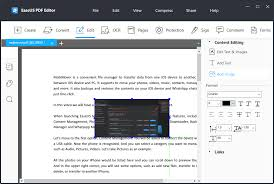
Launch EaseUS PDF Editor Pro from your Windows Start menu or desktop shortcut. The application opens with a clean user friendly interface featuring a menu bar, toolbar, and document canvas area. To open an existing PDF, use File menu or drag and drop a PDF directly onto the application window.
Creating a new PDF begins with File menu selection and New Document option. Choose blank page format and specify dimensions if non standard sizes are needed. Alternatively, import pages from existing documents to use as templates.
Basic Text Editing
Navigate to the document location where you need to edit text. Click the text editing tool from the toolbar. Select the text you want to modify. The selected text becomes editable and formatting options appear. Modify font, size, color, alignment, and other text properties using the formatting toolbar.
For adding new text, click the location where you want text inserted. A text cursor appears allowing you to type directly into the PDF. Complete the edit and click elsewhere to finalize the change.
Image Management and Insertion
To add images to your PDF, use the Insert menu and select Image option. Browse your computer for the image file. Once inserted, you can resize the image by dragging corner handles. Position the image precisely by dragging it to the desired location. Right click the image for additional options including rotation, cropping, and layering controls.
PDF Conversion Process
Open the PDF you want to convert using File menu Open option. Navigate to File menu and select Export As option. Choose your desired output format from Word, Excel, PowerPoint, or text options. Specify the save location and filename. The software processes the conversion and saves the new file.
The conversion quality depends on the original PDF structure. PDFs with clean layouts convert nearly perfectly. Documents with complex formatting may require minor adjustments in the target application.
Annotation and Review Workflow
Open the document requiring review annotations. Select the appropriate annotation tool from the toolbar including highlighter, comment box, drawing tools, or sticky notes. Click or drag on the document to apply the annotation. The annotation appears instantly and is saved with the document.
For team based reviews, distribute the annotated PDF to other team members. They can view all annotations and add their own additional feedback. This creates a layered review process where multiple perspectives contribute to document refinement.
Securing Your Documents
After finalizing your document, protect it using the Security menu. Select password protection option and establish both user and owner passwords if desired. Configure specific permissions including restrictions on editing, printing, or copying content. Apply the security settings and save the document.
Users opening the secured document will see a password prompt. Only those with the correct password can access the document or perform permitted actions.
Comparing EaseUS PDF Editor Pro to Alternatives
Adobe Acrobat Pro Comparison
Adobe Acrobat Pro is the industry standard PDF software offering powerful features and broad compatibility. Adobe dominates corporate environments and maintains extensive integration with other Adobe products. However, Adobe licensing costs significantly more than EaseUS PDF Editor Pro, requiring annual subscription payments.
EaseUS PDF Editor Pro delivers most Adobe features at a fraction of the price. For users not requiring Adobe ecosystem integration, EaseUS offers superior value. The learning curve is gentler with EaseUS featuring more intuitive interface design.
Nitro PDF Pro Comparison
Nitro PDF Pro serves businesses requiring document collaboration and workflow automation. Nitro excels at enterprise level document management and integrates deeply with Microsoft Office products. The software includes advanced features like digital signatures and form creation.
EaseUS PDF Editor Pro is simpler and more accessible for individual users and small teams. Nitro justifies its higher cost for large organizations needing enterprise support and advanced document workflows. For freelancers and small business owners, EaseUS provides better value.
Microsoft Office Embedded PDF Features Comparison
Microsoft Office applications including Word, Excel, and Outlook include basic PDF creation and editing capabilities. These built in features are free to Office subscribers and handle simple tasks effectively.
However, Microsoft Office PDF tools lack advanced features like OCR, detailed annotation sets, batch conversion, and security controls. For users needing comprehensive PDF editing beyond basic file format conversion, EaseUS PDF Editor Pro provides superior functionality.
Foxit PDF Editor Comparison
Foxit PDF Editor offers strong performance and reasonable pricing, making it competitive with EaseUS PDF Editor Pro. Foxit includes robust conversion capabilities and solid OCR functionality. The interface is clean and approachable for new users.
Both EaseUS and Foxit occupy similar market positions targeting individual users and small organizations. Choice between them often comes down to specific features matching your workflow requirements. EaseUS excels at text editing while Foxit emphasizes conversion accuracy.
Frequently Asked Questions About EaseUS PDF Editor Pro
Is EaseUS PDF Editor Pro Completely Free?
EaseUS PDF Editor Pro is not free software, though the company offers a free trial version that provides full access to features for a limited period. The free trial allows you to evaluate the software thoroughly before purchasing. After the trial expires, you must purchase a license to continue using the software.
The company occasionally runs promotional campaigns offering discounted licenses. Following their newsletter or checking promotional websites may reveal limited time offers reducing the purchase price.
What File Formats Can Be Imported and Exported?
EaseUS PDF Editor Pro handles PDF files natively. For import, the software accepts images in JPEG, PNG, BMP, and TIFF formats. It can import text files and create PDFs from them.
For export, you can save PDFs in standard PDF format, convert to Microsoft Word DOCX or DOC format, Excel XLS or XLSX format, PowerPoint PPTX format, or plain text TXT format. This broad format support makes the software versatile for different workflow requirements.
Does the Software Include Batch Processing Capabilities?
Yes, EaseUS PDF Editor Pro supports batch operations for efficient handling of multiple files. You can batch convert numerous PDFs to another format simultaneously. Batch watermarking allows you to add identical watermarks across multiple documents. These batch features save considerable time when processing large document sets.
How Accurate is the Included OCR Technology?
The OCR accuracy depends on several factors including the original document quality, resolution, font clarity, and language complexity. For documents scanned at 300 DPI or higher with clear fonts, the OCR accuracy typically exceeds 95 percent. Lower resolution scans or documents with handwriting achieve lower accuracy rates and may require manual correction of recognized text.
The software supports multiple languages expanding its usefulness for international document processing. Language selection before OCR processing improves recognition accuracy for non English documents.
Can Multiple Users Collaborate on a Single PDF?
EaseUS PDF Editor Pro supports annotation by multiple users but is not specifically designed as a collaborative platform. Each user can add annotations, comments, and suggestions to a shared PDF file. The annotated PDFs can be passed between team members for sequential review and feedback.
For simultaneous real time collaboration, cloud based document platforms may serve better than desktop PDF software. However, for sequential review workflows common in business document processing, EaseUS annotation features work adequately.
What Operating Systems Are Supported?
EaseUS PDF Editor Pro runs exclusively on Windows operating systems. Support covers Windows 10, Windows 11, and some recent versions of Windows 8. The software is not available for macOS or Linux operating systems.
Users on Apple computers can explore alternative PDF editors designed for macOS. Linux users have open source PDF tools available though they generally offer fewer features than commercial products like EaseUS.
How is Customer Support Provided?
EaseUS provides customer support through multiple channels including email support, online help documentation, and frequently asked questions sections on their website. Support response times are generally reasonable though may vary during peak usage periods.
The software includes built in help resources accessible through the Help menu. Video tutorials on the EaseUS YouTube channel demonstrate common tasks and advanced features. User forums may also provide peer to peer support from experienced users.
Does EaseUS PDF Editor Pro Require Internet Connection for Daily Use?
The software functions completely offline after installation and license activation. Internet access is required only during initial installation for license verification and activation. Day to day use of the software requires no internet connection.
Automatic update checks occasionally query the EaseUS servers for available updates, but you can disable automatic updates and manually check for updates when desired.
Advantages and Disadvantages Summary
Significant Advantages
The software excels at text and image editing within PDFs with a clean intuitive interface that new users find approachable. Conversion accuracy between PDF and Microsoft Office formats is strong. The included OCR technology effectively digitizes scanned documents. Reasonable pricing compared to enterprise alternatives like Adobe Acrobat makes professional PDF editing accessible.
The portable version option provides flexibility for users who need software mobility. Comprehensive annotation tools support effective team document review processes. Security features including password protection and permission restrictions appropriately protect sensitive documents.
Notable Limitations
EaseUS lacks some advanced features found in Adobe Acrobat Pro including digital signature capabilities for legally binding documents and extensive form creation tools for complex interactive PDFs. The software is Windows only with no native macOS or Linux versions.
Batch processing capabilities are good but not as extensive as specialized batch processing tools. Customer support, while adequate, is not as comprehensive as enterprise software providers offer. The interface, while intuitive, may feel limited to users accustomed to Adobe’s deeper feature set.
Optimal Use Cases for EaseUS PDF Editor Pro
Student and Academic Applications
Students benefit from EaseUS PDF Editor Pro for annotating course materials, editing assignments before submission, and organizing research documents. The OCR feature enables converting scanned textbook pages into searchable electronic notes.
Professional Business Document Processing
Business professionals use the software for editing client proposals, annotating contracts for review, converting PDFs to Word for further editing, and securing sensitive business documents with encryption.
Small Business Workflow Automation
Small business owners employ EaseUS for batch converting numerous documents, creating standardized PDF forms, maintaining organized document archives, and ensuring confidential files remain secure.
Freelance Document Services
Freelance writers, designers, and consultants use EaseUS for client deliverable formatting, document optimization for various platforms, and professional document presentation.
Document Digitization Projects
Organizations digitizing paper archives use the OCR capabilities to convert scanned documents into editable searchable format. The batch processing features accelerate large scale digitization projects.
Getting Started with EaseUS PDF Editor Pro
Initial Setup Recommendations
Upon first launch, customize the interface settings to match your workflow preferences. Configure default save locations for converted files. Set your preferred default PDF viewer if you want to use an alternative to the built in viewer.
Review the help documentation to become familiar with keyboard shortcuts accelerating your editing work. Watch introductory video tutorials to understand the complete feature set.
Building Efficient Workflows
Establish document naming conventions ensuring organized file management. Create template PDFs with standard formatting for recurring document types. Develop batch processing routines for regular conversion tasks reducing repetitive manual work.
Organize your annotation process using consistent color coding schemes improving document review efficiency. Use comments sparingly but descriptively ensuring annotations communicate clearly.
Maximizing Productivity
Learn keyboard shortcuts for frequently used functions typing shortcuts is faster than navigating menus. Configure quick access toolbars with your most used tools. Explore batch processing capabilities for handling multiple documents simultaneously.
Develop a secure document naming and storage system ensuring important files remain easily retrievable. Back up important edited PDFs to external storage or cloud services protecting against accidental loss.
Security Considerations and Best Practices
Password Protection Strategy
Use strong passwords combining uppercase and lowercase letters, numbers, and special characters. Store passwords securely using a password manager rather than writing them down. Create separate passwords for owner and user access levels when distributing documents.
Test password protected documents to ensure users can successfully open and use them. Document password requirements for recipients reducing confusion during distribution.
Data Privacy Best Practices
Review PDF content carefully before distributing ensuring no sensitive information is accidentally exposed. Use redaction tools if available to permanently remove confidential information. Encrypt documents containing personal information using the security features.
Maintain organized document archives with clear access controls. Delete or securely destroy PDF files containing outdated sensitive information. Consider compliance requirements if documents are subject to regulatory standards.
Troubleshooting Common Issues
Conversion Quality Problems
If conversions produce unexpected formatting, verify the original PDF structure is not corrupted. Try converting small sections first to identify problem areas. Ensure sufficient disk space exists for the conversion process. Update the software to the latest version as conversion algorithms improve regularly.
OCR Recognition Errors
Improve OCR accuracy by increasing source document resolution before scanning. Enhance poor quality scans using image enhancement tools before OCR processing. Configure the correct language for your documents. Review OCR results carefully as manual correction of errors may be necessary.
File Corruption or Access Issues
Attempt opening the PDF in an alternative PDF viewer to determine if the issue is specific to EaseUS. Repair corrupted PDFs using the software’s repair function if available. Verify file permissions allow the application to access the document.
Conclusion
EaseUS PDF Editor Pro delivers professional grade PDF editing capabilities at an accessible price point making it an excellent choice for Windows users regardless of experience level. The combination of powerful editing tools, comprehensive conversion features, and security capabilities addresses the needs of students, professionals, and small business owners. The software’s user friendly interface eliminates the steep learning curve associated with enterprise alternatives while providing advanced features when needed. The included OCR technology and batch processing capabilities add significant value for users handling multiple documents.Whether you need to edit PDF text, convert documents between formats, annotate for team review, or secure sensitive files, EaseUS PDF Editor Pro provides an effective solution.
The portable version option adds flexibility for users requiring mobility. For anyone serious about PDF management on Windows, this software deserves serious consideration. Begin with the free trial to evaluate whether EaseUS PDF Editor Pro meets your specific requirements. Most users find the trial period sufficient to understand whether the features align with their workflow needs. For the price and feature set delivered, EaseUS PDF Editor Pro represents strong value in the competitive PDF editing market.
