VLC Media Player is the world’s most popular free and open source multimedia player, developed by the VideoLAN project. It plays virtually every audio and video format ever created without requiring any additional codec packs, making it the go-to choice for millions of users across Windows, macOS, Linux, Android, and iOS. Whether you need to watch a 4K movie, listen to a lossless audio file, stream an online radio station, or convert a video to a different format, VLC handles all of it with zero cost and zero compromise.
In 2026, VLC continues to dominate as the most trusted media player for Windows users. The latest stable release, version 3.0.23, brings improved security patches, enhanced codec support, and faster hardware decoding for modern GPUs. This guide covers everything you need to know about VLC Media Player, including its features, supported formats, system requirements, tips and tricks, and how to download it safely.
What Is VLC Media Player?
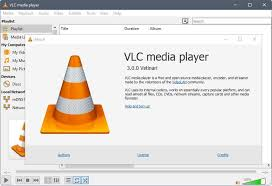
VLC Media Player is a free, open source, and cross-platform multimedia player and framework released under the GNU General Public License. It was originally developed as a student project at Ecole Centrale Paris and has been maintained by the VideoLAN community since 2001. The name VLC originally stood for VideoLAN Client, though today it functions as a complete standalone media solution.
Unlike proprietary media players that require you to install separate codec packages for different file types, VLC includes its own internal library of codecs. This means you can open any media file directly without searching for missing codec plugins or dealing with playback errors. The software is entirely ad-free, contains no spyware or malware, and is completely free to use for personal and commercial purposes.
VLC Media Player System Requirements for Windows
Before downloading VLC Media Player, make sure your Windows PC meets the minimum requirements for smooth playback.
- Supported operating systems include Windows 7, Windows 8, Windows 8.1, Windows 10, and Windows 11 in both 32-bit and 64-bit versions. For the best performance, a 64-bit version of Windows 10 or Windows 11 is recommended.
- The minimum hardware requirements are a 1 GHz processor, 256 MB of RAM, and 150 MB of available disk space. For high definition and 4K video playback, a modern multi-core processor with at least 2 GB of RAM and a dedicated GPU with hardware decoding support will deliver the smoothest experience.
Key Features of VLC Media Player 2026
Universal Format Support Without Codec Packs
VLC plays virtually every media format ever created right out of the box. There is no need to hunt for codec packs or decoder plugins. Supported video formats include MP4, MKV, AVI, MOV, WMV, FLV, WebM, MPEG-1, MPEG-2, MPEG-4, H.264, H.265 (HEVC), VP9, AV1, DivX, Xvid, and dozens more. Supported audio formats include MP3, AAC, FLAC, OGG, WAV, WMA, ALAC, AIFF, AC3, DTS, and many others. VLC also handles subtitles in SRT, ASS, SSA, VobSub, and PGS formats natively.
Hardware Accelerated Video Decoding
VLC uses GPU-based hardware decoding through DirectX Video Acceleration (DXVA2), Intel Quick Sync Video, NVIDIA NVDEC, and AMD VCE to offload video processing from the CPU. This significantly reduces CPU usage during high-resolution playback and allows smooth 4K and 8K video playback even on mid-range hardware.
Advanced Subtitle Support and Synchronization
VLC offers one of the most robust subtitle systems of any media player. You can load external subtitle files, adjust synchronization timing in real time using keyboard shortcuts, change font size and color, and apply subtitle delay corrections on the fly. VLC also supports embedded subtitles inside MKV and MP4 containers automatically.
Built-in Media Converter and Transcoder
VLC is not just a player. It includes a powerful media conversion tool accessible through the Media menu. You can convert video and audio files between dozens of formats, adjust bitrate, resolution, and codec settings, and save the output to your chosen destination. This makes VLC useful as a lightweight video transcoder without needing to install separate software.
Network Streaming and IPTV Playback
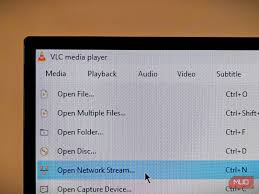
VLC can open network streams directly by entering a URL. It supports HTTP, HTTPS, RTSP, RTMP, MMS, FTP, and UDP protocols. You can use VLC to watch IPTV channels by loading an M3U playlist, stream content from a local network server using SMB or UPnP, or open YouTube and other web video links directly within the player.
Playlist Management with Tree View
The playlist system in VLC supports drag and drop organization, tree-style nested folders, and automatic input preparsing to display media metadata before playback begins. You can queue hundreds of files, save and load playlist files in M3U and XSPF formats, and shuffle or repeat tracks with fine-grained control.
Mosaic and Picture in Picture Mode
VLC supports displaying multiple video streams simultaneously on a single screen using the mosaic filter. This allows you to monitor multiple streams in a grid layout, useful for surveillance feeds or multi-angle video review.
Screen Recording and Desktop Capture
VLC can capture your desktop screen or a connected camera feed and record it directly to a video file or stream it over a network. This feature is accessible through the Media menu under Open Capture Device.
Samba and Network Share Access
You can browse and play media stored on network-attached storage devices and Windows shared folders directly from within VLC using SMB protocol support, removing the need to copy files locally before playback.
Client-Side SSL and TLS Encrypted Streaming
VLC supports secure streaming over HTTPS and encrypted connections using SSL and TLS protocols. This is important when accessing protected media servers or streaming content over public networks.
Audio Equalization and Normalization
VLC includes a 10-band graphic equalizer with presets for genres like rock, pop, classical, and bass boost. It also includes an audio compressor and normalizer that automatically adjusts volume levels to prevent sudden loud peaks during playback.
Customizable Interface with Skins
VLC supports custom skins that completely change its visual appearance. Hundreds of free skins are available from the VideoLAN website and third-party sources, allowing you to personalize the interface to match your desktop theme.
Keyboard Shortcuts for Power Users
VLC is extensively controllable via keyboard shortcuts. You can jump forward or backward by seconds, adjust audio sync, toggle fullscreen, increase playback speed, step frame by frame, take screenshots, and control almost every function without touching the mouse.
Supported Audio and Video Formats in Detail
VLC supports an exceptionally wide range of formats organized by category.
- Video codecs and containers supported include MPEG-1, MPEG-2, MPEG-4 Part 2, H.263, H.264 (AVC), H.265 (HEVC), H.266 (VVC), AV1, VP8, VP9, Theora, Dirac, WMV 1 through 3, DivX, Xvid, RealVideo, QuickTime, Flash Video (FLV), and 3GP among many others.
- Audio codecs supported include MPEG Layer 1 through 3 (MP3), AAC, HE-AAC, Vorbis, FLAC, Opus, Speex, WMA Standard and Pro, AC3 (Dolby Digital), DTS, TrueHD, ALAC, AIFF, WAV PCM, LPCM in 16, 20, and 24 bit depths, and raw AAC streams.
- Container formats supported include MKV (Matroska), MP4, AVI, MOV, OGG, OGM, ASF, WMV, FLV, TS, M2TS, PS, VOB, MTS, WebM, 3GP, FLAC container, AIFF, and WAV.
- Subtitle formats supported include SRT, ASS, SSA, VobSub (SUB and IDX), PGS (Bluray), TTML, WebVTT, and Kate.
VLC Media Player vs Other Media Players in 2026
Many Windows users wonder how VLC compares to alternatives like Windows Media Player, Media Player Classic, PotPlayer, and KMPlayer.
Windows Media Player, built into Windows, has very limited format support and requires codec packs for many common files. It cannot play MKV containers natively. VLC plays everything without any additional installation. PotPlayer is a feature-rich alternative with a more polished interface and slightly better performance on some hardware configurations, but it is closed source and only available for Windows. Media Player Classic Home Cinema (MPC-HC) is a lightweight open source player that many users prefer for its minimal footprint, though its development has slowed and it lacks built-in streaming capabilities that VLC offers.
KMPlayer includes its own codec pack and offers 3D and 360-degree video support, but it also includes optional bundled software during installation that users must decline. VLC stands alone as the best choice when you prioritize cross-platform compatibility, open source transparency, zero bundled software, complete format support, and active ongoing development from a trusted nonprofit organization.
How to Download and Install VLC Media Player on Windows?
Downloading VLC Media Player is straightforward and completely free. Always download from the official VideoLAN website at videolan.org to ensure you receive the genuine, malware-free installer. The official download page offers both 32-bit and 64-bit installers for Windows. If you are running a modern Windows 10 or Windows 11 PC, always choose the 64-bit version for better performance and full memory support. The installation process involves running the downloaded setup file, selecting your preferred language, choosing which components to install, and selecting the installation directory.
The default installation takes roughly 150 MB of disk space and completes in under two minutes on most systems. You can also choose to associate VLC with specific file types during installation so that double-clicking any media file opens it automatically in VLC.
VLC Portable Version for Windows
The portable edition of VLC Media Player allows you to run the player from a USB flash drive or any folder without installing it on the system. It stores all settings and configurations within its own folder rather than the Windows registry, making it ideal for use on shared computers, office machines, or systems where you do not have administrator privileges.
The portable version has the same feature set as the standard installed version. You can carry it on a USB drive and plug it into any Windows PC to immediately have access to a full-featured media player with all your custom settings intact.
VLC Media Player Tips and Tricks for Windows Users
Getting the most out of VLC goes beyond basic playback. Here are practical techniques that power users rely on. You can increase playback speed above 1x by pressing the right square bracket key repeatedly, making it easy to watch long lectures or tutorials faster. Press the left square bracket to slow down playback. Taking a screenshot of the current video frame is possible through the Video menu or by pressing Shift plus S. Screenshots are saved to your Pictures folder by default. You can loop a specific segment of a video using the A to B repeat function. Press Shift plus L to set the start point A and press it again to set the end point B, then the selection loops continuously. To play a DVD stored as a folder on your hard drive rather than from a physical disc, go to Media, then Open Disc, then select the VIDEO_TS folder using the directory option.
VLC can stream your desktop to another device on your local network. Open Media, then Stream, select Desktop capture, set the streaming output destination using HTTP or RTSP, and any device with VLC on the same network can connect to your screen in real time. The audio delay and subtitle delay adjustments are available in real time using Ctrl plus J for audio and H and G for subtitles, allowing you to correct sync issues without stopping playback.
VLC Media Player Security and Privacy
VLC is developed by VideoLAN, a French nonprofit organization. The source code is publicly available on GitLab and has been independently audited. There are no advertisements, no telemetry, no usage tracking, and no data collection of any kind. VLC does not connect to any server without your explicit action. When you update VLC, it checks for a new version number on VideoLAN’s servers only when you manually trigger the check from the Help menu. There is no background auto-update service running when VLC is closed.
This level of transparency and privacy makes VLC particularly well-suited for use in schools, government offices, healthcare environments, and any setting where data privacy is a concern.
Technical Details
- Software Name: VLC Media Player 3.0.23 Stable Developer: VideoLAN Organization License: GNU General Public License v2 (Freeware, Open Source) Language Support: Multilingual (over 60 languages) Supported OS: Windows 7, 8, 10, 11 (32-bit and 64-bit) Latest Stable Version: 3.0.23 File Size: 42 MB (32-bit), 43 MB (64-bit)
Frequently Asked Questions About VLC Media Player
Is VLC Media Player completely free?
Yes. VLC is free to download and use forever with no trial period, premium tier, or in-app purchases. It is open source software released under the GNU GPL license.
Does VLC need codec packs to play MKV or HEVC files?
No. VLC includes all necessary codecs internally. You can open any MKV, HEVC, AV1, or other format directly without installing any additional codec package.
Can VLC play Blu-ray discs?
VLC can play Blu-ray discs with limited functionality. Full Blu-ray menu support requires additional AACS and BD plus decryption libraries that must be obtained and installed separately due to legal restrictions in some countries.
Is VLC safe to download?
Yes, as long as you download from the official VideoLAN website at videolan.org. Avoid third-party download sites that may bundle VLC with adware or modified versions.
Can VLC play YouTube videos?
VLC can open YouTube URLs directly through Media, then Open Network Stream. However, this functionality can break when YouTube changes its streaming format, so reliability may vary.
Does VLC support 4K video?
Yes. VLC supports 4K and 8K video playback with hardware acceleration enabled, delivering smooth high-resolution playback on compatible hardware.
Conclusion
VLC Media Player remains the definitive free media player for Windows in 2026. Its unmatched format compatibility, zero codec requirement, built-in streaming and conversion tools, active open source development, and complete privacy make it the only media player most users will ever need. Whether you are a casual movie watcher, a content creator, a network administrator, or a developer, VLC offers the tools and reliability to handle any multimedia task without paying a single rupee.
Download the latest version of VLC Media Player 3.0.23 from the official VideoLAN website today and experience truly universal playback on your Windows PC.
