
Media Player Classic Home Cinema (MPC-HC) is a free, open-source media player for Windows that plays virtually every video and audio format without requiring additional codec packs. It is lightweight, fast, and trusted by millions of users worldwide who want reliable media playback without bloatware. Whether you are playing HD movies, streaming local content, or watching DVDs, MPC-HC delivers smooth and accurate playback on any Windows PC.
What Is Media Player Classic Home Cinema?
Media Player Classic Home Cinema, commonly known as MPC-HC, is a modernized continuation of the original Media Player Classic developed by Gabest under the Guliverkli project. The current actively maintained fork is developed by clsid2 and continues to receive updates and security patches. It combines the simplicity of a classic Windows media player interface with a powerful internal codec engine that rivals much larger applications.Unlike bloated media suites that require installation of separate codec packages, MPC-HC ships with all the decoding filters it needs out of the box.
It supports hardware acceleration through DXVA2 and D3D11, which offloads video decoding to your GPU and significantly reduces CPU usage during high-definition playback.
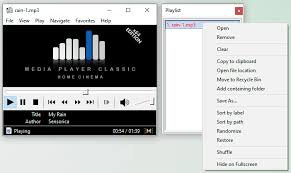
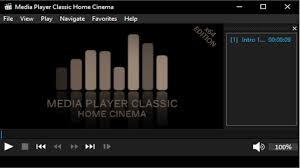
Key Features of MPC-HC 2.7.2
Universal Format Support Without Extra Codecs
- MPC-HC includes built-in decoding for the most widely used video and audio formats. Users do not need to install K-Lite Codec Pack or any third-party codec suite to play their media files. The internal codec engine handles:
- Video formats including MPEG-1, MPEG-2, MPEG-4, H.264, H.265 (HEVC), VC-1, DivX, Xvid, AV1, VP8, VP9, Flash Video (FLV), and QuickTime formats. Container formats supported include MKV (Matroska), MP4, AVI, MOV, WMV, OGM, FLV, and many more.
- Audio formats supported include MP3, AAC, AC3, DTS, FLAC, OGG, WMA, LPCM, MP2, and WAV among others.
- Image viewing is also built in with support for JPEG, PNG, BMP, and GIF files.
Hardware Accelerated Video Decoding
One of the most important performance features in MPC-HC is hardware decoding support through DXVA2 (DirectX Video Acceleration) and D3D11 (Direct3D 11). When you play H.264 or HEVC video, the GPU handles the decoding workload rather than the CPU. This results in lower CPU temperatures, reduced power consumption on laptops, and perfectly smooth playback of 4K and 1080p content on older hardware that would otherwise struggle.
DVD and Blu-ray Navigation Support
MPC-HC supports full DVD playback including menu navigation, chapter selection, subtitle switching, and audio track selection directly from the player interface. Users can play DVDs from physical disc drives or ISO image files. While native Blu-ray decryption is not included due to licensing restrictions, MPC-HC works seamlessly with the MakeMKV or AnyDVD HD tools for Blu-ray playback.
VCD and SVCD playback is also supported through the built-in VCD/SVCD/XCD reader without needing PowerDVD or any other dedicated disc player software.
Advanced Subtitle Support
MPC-HC offers one of the most flexible subtitle systems among free media players. It supports SubRip (.srt), SubStation Alpha (.ssa and .ass), MicroDVD (.sub), VOBSUB (.sub and .idx), PGS (Blu-ray bitmap subtitles), and many other formats. Users can adjust subtitle delay, size, color, position, and font directly from the player. The built-in subtitle downloader can connect to OpenSubtitles.org to find and load matching subtitles automatically.
Pixel Shader and Video Processing
Advanced users can apply DirectX pixel shaders to enhance video quality. Built-in shader presets include BT.601 to BT.709 colorspace conversion (critical for correctly displaying older SD content on modern monitors), YV12 chroma upsampling, and various sharpening and noise reduction filters. These shaders run directly on the GPU, adding zero CPU overhead.
Dual Monitor and Multi-Display Support
MPC-HC includes native support for multi-monitor setups. Users can configure the player to display video on a secondary monitor or projector while keeping controls on the primary display. This feature is especially useful for home theater PC (HTPC) setups where the computer is connected to both a monitor and a television simultaneously.
On-Screen Display and Remote Control Support
The On-Screen Display (OSD) shows playback information such as current time, chapter, and audio or subtitle track changes directly on the video. MPC-HC also supports the Shuttle PN31 remote control and can be used with general-purpose media remote controls through LIRC or WM_APPCOMMAND messages, making it suitable for HTPC use from a couch.
Television Tuner Recording
If a compatible TV tuner card is installed in your PC, MPC-HC supports both live television playback and recording. This functionality makes it a capable free alternative to Windows Media Center for users who want to watch or record over-the-air broadcasts without any additional software.
Technical Specifications
Software Name: Media Player Classic Home Cinema 2.7.2 Developer: clsid2 (GitHub) Original Project: Gabest (Guliverkli) License: GNU General Public License v3 (Free and Open Source) Interface Languages: Belarusian, Brazilian Portuguese, Catalan, Czech, Dutch, English, French, German, Hungarian, Italian, Japanese, Korean, Polish, Russian, Simplified Chinese, Traditional Chinese, Slovak, Spanish, Swedish, Turkish, Ukrainian, and more Supported Operating Systems: Windows 7, Windows 8, Windows 8.1, Windows 10, Windows 11 (32-bit and 64-bit) File Size: Approximately 41 MB Version Type: Freeware, no nags, no ads, no premium tier
Supported Audio and Video Formats
MPC-HC supports an extensive list of file types. The following represents the full range of officially supported formats.
- Audio formats: WAV, WMA, MP3, OGG, SND, AU, AIF, AIFC, AIFF, MIDI, AAC, FLAC, DTS, AC3, MP2, LPCM
- Video formats: MPEG, MPG, MP2, MP4, VOB, ASF, WM, WMV, AVI, MOV, QT, FLV, SWF, MKV, OGM, TS, M2TS
- Playlist formats: M3U, PLS, WAX, ASX, CUE
- Image formats: JPEG, JPG, GIF, PNG, BMP
- Disc image formats: ISO, CUE+BIN, IMG
How to Install Media Player Classic Home Cinema on Windows?
Installing MPC-HC is straightforward and takes under a minute. Download the installer from the official GitHub releases page at github.com/clsid2/mpc-hc. Choose either the 32-bit (x86) or 64-bit (x64) installer based on your Windows version. Most modern systems should use the 64-bit version for best performance.Run the installer and follow the on-screen prompts. The installer asks which file associations you want to assign to MPC-HC. You can associate all supported media formats with MPC-HC or select only specific types.
After installation, MPC-HC is ready to use immediately with no additional configuration required.A portable version is also available that requires no installation and can be run directly from a USB drive.
How to Configure MPC-HC for Best Playback Quality?
After installation, a few settings adjustments will significantly improve playback quality on most systems.To enable hardware decoding, open Options from the View menu, navigate to Playback and then to Output, and set the DirectShow Video renderer to Enhanced Video Renderer (Custom Presenter) or MPC Video Renderer. Then go to Internal Filters and under Transform Filters, check the boxes for H.264 and HEVC hardware decoder options. This activates DXVA2 decoding for the most common modern video formats.
For subtitle display, go to Options and then Subtitles to configure your preferred font, size, and rendering engine. Enabling the VSFilter or XySubFilter renderer provides the most accurate subtitle positioning for ASS and SSA format subtitles.For audio output, setting the audio renderer to WASAPI exclusive mode provides bit-perfect audio output that bypasses Windows audio mixing, which is ideal for audiophiles or home theater setups connected to an AV receiver.
MPC-HC vs Other Free Media Players
MPC-HC is frequently compared to VLC Media Player and PotPlayer. Here is how they differ.VLC is fully cross-platform and runs on Linux, macOS, Android, and iOS in addition to Windows. MPC-HC is Windows-only but has a more native Windows feel and tighter integration with DirectShow and DirectX filters. VLC uses its own internal decoder pipeline while MPC-HC can use system-installed DirectShow filters, giving advanced users more control.PotPlayer is a feature-rich freeware player from Kakao (South Korea) that offers more built-in visual customization and skin support than MPC-HC. However, PotPlayer is not open-source, while MPC-HC is fully open-source and auditable.
For users who value a clean, fast, open-source player that follows the Windows design philosophy and supports advanced DirectShow configuration, MPC-HC remains the best choice in 2026.
Why MPC-HC Remains Relevant in 2026?
Despite being a continuation of software originally released in the early 2000s, MPC-HC stays relevant because of its active community maintenance under the clsid2 fork. Recent updates have added AV1 hardware decoding support, D3D11 video renderer improvements, compatibility fixes for Windows 11, and updated internal codecs. The player is trusted by professional video editors, HTPC enthusiasts, and everyday users who want a no-nonsense media player that simply works.
Its zero-cost, zero-ads, zero-subscription model stands out in an era where many software projects adopt freemium pricing. MPC-HC will never ask for your email address, show advertisements, or require activation.
Frequently Asked Questions About MPC-HC
Is Media Player Classic Home Cinema safe to use?
Yes. MPC-HC is 100 percent open-source software hosted on GitHub. The source code is publicly auditable by anyone, making it one of the most transparent media players available. Download only from the official GitHub repository or trusted mirror sites to avoid bundled malware from unofficial sources.
Does MPC-HC support 4K and HDR video?
MPC-HC supports 4K playback through hardware decoding of H.264, H.265, VP9, and AV1 content. HDR (High Dynamic Range) passthrough support depends on the video renderer used. The MPC Video Renderer included in recent builds supports HDR10 passthrough on compatible displays.
Can MPC-HC play MKV files?
Yes. MKV (Matroska) is natively supported without any additional codecs. MPC-HC handles MKV files containing H.264, H.265, AV1, VP9, and other video streams along with multiple audio tracks and embedded subtitles.
Does MPC-HC work on Windows 11?
Yes. The current clsid2 fork of MPC-HC is fully compatible with Windows 11 on both 32-bit and 64-bit systems. Recent releases specifically address Windows 11 compatibility issues.
What is the difference between MPC-HC and MPC-BE?
MPC-BE (Media Player Classic Black Edition) is a separate fork of the same original codebase. MPC-BE has a slightly different interface and additional built-in features. Both are actively maintained free players. MPC-HC tends to be more conservative in changes while MPC-BE adds more experimental features more quickly.
Conclusion
Media Player Classic Home Cinema 2.7.2 is one of the best free media players for Windows in 2026. It offers universal format support, hardware-accelerated decoding, advanced subtitle handling, multi-monitor support, and a clean lightweight interface, all at no cost and with no restrictions. Whether you are a casual viewer or a power user building a home theater PC, MPC-HC provides the performance and flexibility to handle any media playback task. Download the latest version from the official GitHub repository and enjoy your media collection without compromise.
