
![Microsoft Edge Offline Installer:[2026]](https://pcfile.site/wp-content/uploads/2026/06/micro-2.webp)
Microsoft Edge is the default web browser on every modern Windows PC and one of the fastest growing browsers on Mac, Android, and iOS. While most people install it through the standard online setup file, IT administrators, students with limited internet access, and anyone setting up multiple computers often need the full offline installer instead. This guide explains exactly what the Microsoft Edge offline installer is, where to get it safely, how to install it step by step, and which features make Edge worth using in 2026.
What Is the Microsoft Edge Offline Installer?
The Microsoft Edge offline installer, also called a full standalone installer, is a complete setup package that already contains every file the browser needs. Unlike the small web installer that downloads components during setup, the offline version lets you install Edge on a computer with no internet connection at all, or deploy it across many machines from a single saved file.This makes the offline installer especially useful for three groups of users.
- IT administrators who need to roll out Edge across dozens or hundreds of company computers without straining network bandwidth.
- People setting up a fresh Windows installation before an internet connection is available.
- Anyone who wants a reliable backup copy of the installer in case Microsoft’s servers are temporarily unreachable.
Offline Installer vs Online Installer: Which One Do You Need
Most home users never need to think about this because Edge comes preinstalled on Windows 10 and Windows 11. However, if you are reinstalling Windows, using an older operating system, or managing a business fleet of PCs, the difference matters.The online installer is a small file, usually only a few megabytes, that connects to Microsoft’s servers and downloads the rest of the browser during setup. It is convenient when you have a stable internet connection and only need to set up a single computer.The offline installer is much larger because it includes the entire browser package upfront.
It does not need an internet connection during installation, it installs faster since there is nothing left to download, and it can be copied to a USB drive or shared folder and reused on as many machines as needed.
System Requirements for Microsoft Edge
Before downloading, confirm your device meets the minimum requirements.
- Operating system: Windows 7, Windows 8, Windows 8.1, Windows 10, Windows 11, macOS, or Linux. Edge is also available for Android and iOS through their respective app stores.
- Processor: 1.6 GHz or faster, with support for 32 bit, 64 bit, and ARM64 architectures.
- Memory: At least 4 GB of RAM, though 8 GB or more is recommended for smooth multitasking with many tabs open.
- Storage: Roughly 200 MB to 400 MB of free disk space, depending on the version and architecture you choose.
- Display: A screen resolution of 1024 by 768 pixels or higher.
How to Download the Microsoft Edge Offline Installer Safely?
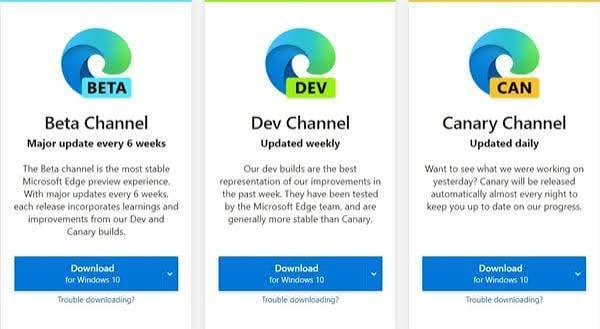
Always download Edge directly from Microsoft rather than from third party file hosting sites. Microsoft maintains an official page specifically for offline and enterprise deployment packages, where you can choose your platform and architecture before downloading a verified MSI, PKG, or DEB or RPM file.To get the genuine offline installer, visit the Microsoft Edge for Business download page on microsoft.com, select your operating system, choose the channel you need such as Stable, Beta, or Dev, pick the correct architecture for your device, and accept the license agreement before the download begins.
This route guarantees the file is signed by Microsoft, free of bundled adware, and automatically up to date with the latest security patches.Downloading from unofficial mirrors carries real risk, since modified installers can include unwanted toolbars, tracking software, or malware disguised as a legitimate browser setup file.
How to Install Microsoft Edge Using the Offline Installer?
On Windows
- Download the MSI file that matches your system architecture, either x86, x64, or ARM64.
- Double click the downloaded file to launch the setup wizard.
- If prompted by User Account Control, click Yes to allow the installer to make changes.
- Wait while the installer extracts and installs all required components. Since everything is already included in the package, this step is much faster than the online installer.
- Once installation completes, Edge will open automatically and offer to import bookmarks, passwords, and history from your previous browser.
On macOS
- Download the PKG installer for macOS from the official Microsoft page.
- Open the downloaded file and follow the on screen instructions in the installer.
- Enter your Mac password if requested to authorize the installation.
- Launch Edge from your Applications folder once setup finishes.
Deploying Microsoft Edge Across Multiple Computers
For schools, businesses, and IT teams, the offline installer can be paired with Microsoft’s deployment tools to push Edge to many devices at once. Administrators commonly use Group Policy, Microsoft Intune, or simple silent install commands through the command line to automate rollout without needing to visit each machine individually. This is one of the strongest practical reasons to keep an offline installer on hand rather than relying solely on the small web setup file.
Key Features That Make Microsoft Edge Worth Using in 2026
Microsoft has continued to expand Edge well beyond a simple Chromium based browser. Here are the features that matter most to everyday users and professionals alike.
Copilot Built Directly Into the Browser
Edge now integrates Microsoft Copilot as a native part of the browsing experience rather than a separate add on. Copilot in Edge can summarize long articles, compare information across multiple open tabs at once, answer questions about the page you are viewing, and assist with writing tasks such as drafting emails or rephrasing text. With permission, it can also reference your browsing history and previous conversations to provide more relevant help, and recent updates have extended these capabilities to mobile with voice and visual search tools.
Full Chromium Compatibility
Because Edge is built on the Chromium engine, it supports the vast majority of extensions available in the Microsoft Edge Add ons store as well as the Google Chrome Web Store. This means you can carry over ad blockers, password managers, and productivity tools without losing functionality.
Vertical Tabs and Tab Organization
Edge offers a vertical tab layout that moves open tabs to a sidebar instead of a horizontal strip, which is especially useful for people who routinely keep dozens of tabs open. Combined with automatic tab grouping and an AI powered tab organizer, finding the right tab becomes far less frustrating.
Built In Privacy and Security Tools
Microsoft Defender SmartScreen actively checks the sites you visit for phishing attempts and malicious downloads. Tracking Prevention lets you choose how aggressively Edge blocks third party trackers, and InPrivate browsing mode keeps your session history off the device entirely.
Performance Features
Sleeping Tabs automatically free up memory and CPU resources from tabs you are not actively using, which keeps the browser responsive even with a large number of tabs open. Edge also includes efficient power saving modes that can extend laptop battery life during long browsing sessions.
Collections and Immersive Reader
Collections let you save text, images, and links from across the web into organized boards, which is handy for research, shopping, or trip planning. Immersive Reader strips away clutter from articles and can read content aloud, adjust text spacing, and highlight parts of speech to support easier reading.
Cross Platform Sync
Signing in with a Microsoft account syncs your favorites, passwords, browsing history, and open tabs across Windows, macOS, Linux, Android, and iOS, so you can pick up exactly where you left off on any device.
Microsoft Edge vs Google Chrome
Both browsers share the same Chromium foundation, so day to day speed and website compatibility are very similar. The meaningful differences come down to extra features and resource usage.
Memory efficiency: Edge’s Sleeping Tabs feature generally gives it an edge in memory usage when many tabs are open compared to Chrome’s default tab handling.
Built in tools: Edge includes Collections, vertical tabs, and a native PDF reader with annotation tools out of the box, while Chrome relies more on third party extensions for similar functionality.
AI integration: Edge’s Copilot integration is currently more deeply woven into the browsing experience than Chrome’s equivalent AI features.
Extension library: Chrome’s Web Store has a larger overall extension catalog, although Edge can install most of those same extensions directly.
Ecosystem: Edge naturally fits better for users already invested in Windows and Microsoft 365, while Chrome integrates more tightly with Google’s own services.
Frequently Asked Questions
Is the Microsoft Edge offline installer free to download?
Yes. Microsoft Edge is completely free software, and the official offline installer carries no license cost for personal, educational, or business use.
Can I install Microsoft Edge offline installer on Windows 7?
Yes. Microsoft continued supporting Edge installations on Windows 7 and 8.1 through dedicated offline packages, although you should confirm current support status on Microsoft’s official page since operating system support windows change over time.
Does the offline installer update automatically after installation?
Yes. Once installed, Edge uses its built in update service to download and apply new versions automatically in the background, the same way the online installer does.
What is the difference between Edge Stable, Beta, and Dev channels?
Stable is the fully tested version recommended for most users. Beta receives upcoming features a few weeks before Stable for those who want an early look with reasonable reliability. Dev updates more frequently with newer, less tested features and is best suited for developers and advanced testers.
Is Microsoft Edge based on the same engine as Google Chrome?
Yes. Since 2020, Microsoft Edge has been built on the open source Chromium project, the same engine that powers Google Chrome, Opera, and several other browsers, which is why most Chrome extensions also work in Edge.
Can I uninstall Microsoft Edge from Windows 11?
Microsoft Edge is treated as a core system component on Windows 11 and cannot be fully removed through the standard uninstall process, though you can set a different browser as your default at any time.
Final Thoughts
The Microsoft Edge offline installer remains the most reliable option for anyone deploying the browser without a stable internet connection, managing several devices at once, or simply wanting a verified backup copy of the setup file. Combined with Edge’s growing set of built in tools, from Copilot assistance to vertical tabs and strong privacy controls, the browser has matured into a genuinely competitive choice rather than just the default option that comes with Windows. Always download directly from Microsoft’s official page to make sure you get an authentic, secure, and fully up to date installer.
