
Data loss is one of the most stressful experiences for any Windows user. Whether you accidentally deleted an important file, formatted the wrong drive, or lost data after a system crash, Remo Recover for Windows offers a professional and reliable solution to get your files back. This comprehensive guide covers everything you need to know about Remo Recover, including its features, how it works, system requirements, and why it stands out among the best data recovery tools available today.
What Is Remo Recover for Windows?
Remo Recover is a professional-grade data recovery software developed by Remo Software. It is designed to restore lost, deleted, or inaccessible files from Windows computers, external hard drives, USB flash drives, memory cards, and other storage media. The software supports recovery of more than 300 file types and uses advanced scanning algorithms to locate data that most standard tools cannot find.
Unlike basic file recovery utilities, Remo Recover can handle complex data loss scenarios, including recovery from unbootable operating systems, severely corrupted partitions, and drives that have undergone multiple format operations.
Why Data Loss Happens and How Remo Recover Helps?
Understanding the common causes of data loss helps you appreciate why a powerful tool like Remo Recover is essential to have on hand. Accidental deletion is the most frequent cause, whether by pressing Shift plus Delete or emptying the Recycle Bin without checking its contents. Formatting a drive by mistake is another common scenario, especially when managing multiple storage devices. Partition corruption caused by sudden power outages, bad sectors, or improper system shutdowns can render entire drives unreadable. Virus or malware attacks sometimes delete or hide files.
Even reinstalling Windows can cause data loss if the user forgets to back up personal files beforehand. Remo Recover addresses every one of these situations through a combination of deep scanning, raw file signature search, and disk image creation, ensuring maximum data retrieval success regardless of the cause.
Key Features of Remo Recover 6.0.0.260
Deleted File Recovery Including Shift Delete
Remo Recover can retrieve files that were permanently deleted using the Shift plus Delete keyboard shortcut, bypassing the Recycle Bin entirely. It scans the drive at the file system level to locate file remnants before they are overwritten.
Recycle Bin Recovery
Files removed from the Recycle Bin are still recoverable with Remo Recover. The software identifies the original file location and reconstructs the file structure to restore them to their previous state.
Raw Search for Over 300 File Types
The Raw Search feature allows users to recover files by scanning for known file signatures rather than relying solely on the file system. This makes it especially effective when the file system is damaged or missing. It supports documents, spreadsheets, presentations, images, videos, audio files, archives, and many more.
Professional RAW Photo Recovery
Photographers working with RAW image formats from Canon, Nikon, Sony, and other major camera brands can recover their uncompressed RAW files. Remo Recover recognizes the proprietary formats of these cameras and restores them with full quality intact.
Photo, Video, and Audio File Recovery
Whether you have lost vacation photos, home videos, or a music library, Remo Recover can locate and restore multimedia files from virtually any storage device including SD cards, USB drives, and external hard disks.
Disk Image Creation to Bypass Bad Sectors
When a storage device contains bad sectors, reading from it repeatedly can cause further damage. Remo Recover allows you to create a complete disk image of the drive and then perform all recovery operations from that image instead. This protects the original data and significantly increases recovery success rates for failing drives.
Recovery from Disk Images
The software also allows users to recover data from existing disk images created by Remo Recover or other imaging tools, making it a flexible option for forensic and advanced recovery workflows.
Recovery After Windows Reinstallation
Reinstalling Windows often overwrites or removes personal data from the system partition. Remo Recover can scan the affected drive and restore documents, media files, and application data that were present before the reinstallation.
Custom File Type Support via Raw Signature Search
Advanced users can add new and custom file types for recovery by defining their own raw file signatures. This makes Remo Recover extensible beyond its default 300 supported formats.
Formatted and Reformatted Partition Recovery
Recovering files from a drive that has been accidentally formatted or reformatted is one of the most challenging data recovery tasks. Remo Recover handles this by scanning the underlying data structures and reassembling file information without depending on the corrupted file system.
Lost and Deleted Partition Recovery
When a partition disappears from Windows Disk Management due to corruption or accidental deletion, Remo Recover can detect the lost partition signatures and initiate a full recovery of the files stored on it.
Repartitioned Drive Recovery
Drives that have been repartitioned, resized, or restructured using third-party partition managers can still be scanned by Remo Recover, which looks for residual data patterns to recover files from the original partition layout.
How to Use Remo Recover: Step by Step?
- Using Remo Recover is straightforward even if you have no technical background. The following steps walk you through a typical recovery operation.
- Step one is to download and install Remo Recover on your Windows computer. Always install it on a drive different from the one you are trying to recover data from, to avoid overwriting any recoverable files.
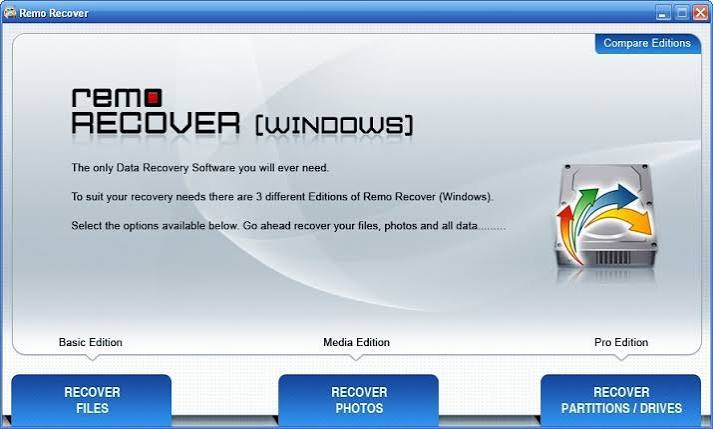
- Step two is to launch the application and select the type of recovery you need. You can choose between basic file recovery for recently deleted files or advanced recovery for formatted drives, lost partitions, and complex scenarios.
- Step three is to select the drive or partition from which you want to recover data. The software displays all connected drives and volumes, including external devices.
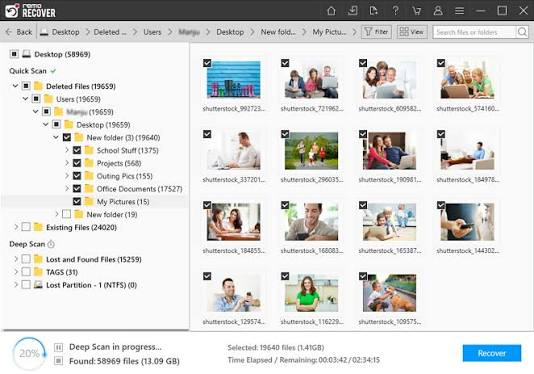
- Step four is to let the software complete its scan. Depending on the drive size and condition, this may take a few minutes to several hours. The deep scan mode provides the most thorough results.
- Step five is to preview the recoverable files. Remo Recover displays a list of all found files organized by type and folder structure. You can preview images, documents, and other file types before recovery.
- Step six is to select the files you want to restore and choose a save location on a different drive to complete the recovery process.
Remo Recover vs Other Data Recovery Tools
- Remo Recover holds several advantages over competing software such as Recuva, EaseUS Data Recovery Wizard, and Stellar Data Recovery.
- Its raw signature search is more comprehensive than Recuva, which primarily relies on the file system for identification. The disk image creation feature is typically found only in enterprise-grade tools but is included in Remo Recover for consumer use. The software also supports recovery from unbootable systems, a capability that many free alternatives lack entirely.
- For users who need to recover professional RAW photos, Remo Recover offers better camera format compatibility than most general-purpose tools.
Technical Details
- The current version is Remo Recover Windows 6.0.0.260, developed by Remo Software. The software is available as a full version with a file size of approximately 53 MB. The interface is available in English and supports 32-bit and 64-bit Windows installations.
System Requirements
- Remo Recover is compatible with Microsoft Windows 10, Windows 8, Windows 7, Windows Vista, Windows XP, Windows Server 2003, and Windows Server 2008. The minimum RAM requirement is 512 MB, though 1 GB or more is recommended for optimal performance during deep scans. You need at least 50 MB of free disk space for installation. Administrator privileges are required to install and run the software correctly.
Frequently Asked Questions About Remo Recover
Can Remo Recover retrieve files deleted months ago?
Yes, provided the storage space where the deleted files resided has not been fully overwritten by new data. The sooner you attempt recovery after deletion, the higher the success rate.
Does Remo Recover work on external hard drives and USB drives?
Yes. The software recognizes and scans all connected storage devices including external hard drives, USB flash drives, memory cards, and solid-state drives.
Is it safe to use Remo Recover on a failing drive?
The disk image creation feature is specifically designed for this scenario. You should create a disk image of the failing drive first and then recover data from the image to avoid putting additional stress on the hardware.
Can I recover data from a drive after formatting it?
Yes. Formatting does not immediately erase the underlying data. Remo Recover uses raw signature scanning to locate and reconstruct files even after a full format operation.
Will the recovered files be intact and usable?
In most cases, recovered files are restored with their original quality and structure. However, if portions of the file were overwritten before recovery, some files may be partially corrupt. Previewing files before recovery helps you identify which ones are complete.
Tips to Maximize Recovery Success
- Stop using the affected drive immediately after data loss. Every write operation reduces the chances of successful recovery by potentially overwriting the sectors where deleted files reside.
- Do not install Remo Recover on the same drive from which you want to recover data. Use a separate internal drive or an external USB drive for the installation.
- Use the disk image option for drives that make unusual sounds or show signs of physical failure. Running multiple scans on a mechanically failing drive can cause irreversible damage.
- Run the deep scan mode for the best results, especially when quick scan does not locate the files you need.
- Save recovered files to a different drive than the source to prevent data contamination.
Conclusion
Remo Recover 6.0.0.260 is a comprehensive and user-friendly data recovery solution for Windows that handles everything from simple accidental deletions to complex scenarios involving formatted drives, lost partitions, and unbootable systems. Its support for over 300 file types, professional RAW photo recovery, disk image creation, and custom file signature search make it one of the most versatile tools in its category. Whether you are a home user who accidentally deleted a photo album or a professional managing critical business data, Remo Recover provides the depth and reliability needed to get your files back safely.
