
Wondershare Recoverit is one of the most trusted data recovery software solutions available for Windows users today. Whether you accidentally deleted important files, lost data after a system crash, or formatted the wrong drive, Recoverit gives you a reliable way to get your data back. This complete guide covers everything you need to know about downloading, installing, and using Wondershare Recoverit on Windows, including its features, system requirements, pricing, and step-by-step recovery instructions.
What Is Wondershare Recoverit?
Wondershare Recoverit is a professional-grade data recovery application developed by Wondershare Technology, a trusted software company with over 35 patents in the data recovery field. The software is designed to scan storage devices at the file-system level and recover lost, deleted, corrupted, or inaccessible data from virtually any Windows-compatible storage medium.The latest version, Recoverit V14, supports over one million devices, covers more than 10,000 data loss scenarios, and delivers an industry-leading internal recovery success rate of up to 99.5 percent.
It is available for both Windows and macOS, with a free version allowing users to preview recoverable files and restore up to 100 MB of data before committing to a paid plan.
Why Download Wondershare Recoverit for Windows?
Losing data is a stressful experience. Files disappear for many reasons, including accidental deletion, Recycle Bin clearing, drive formatting, virus attacks, power failures, partition loss, and system crashes. Most users assume deleted files are gone forever, but that is rarely the case. When a file is deleted from Windows, the data often remains on the disk until it is overwritten by new data. Recoverit takes advantage of this by scanning the storage device and reconstructing recoverable files.
Here is why Recoverit stands out from competing data recovery tools:
It holds a 96 to 99.5 percent recovery success rate backed by advanced deep-scan algorithms. It supports over 1,000 file types spanning photos, videos, audio, documents, emails, archives, and databases. It recovers data from more than 2,000 device types, including hard drives, SSDs, USB flash drives, SD cards, digital cameras, drones, and external drives. It features a special Advanced Video Recovery module for reassembling fragmented video files. It also includes a System Crash Recovery module that lets you create a bootable USB drive to recover data from a computer that will no longer start. The software is ranked as a leading data recovery solution by G2 and trusted by millions of users worldwide.
System Requirements for Wondershare Recoverit on Windows
Before downloading Recoverit, confirm your Windows PC meets the minimum system requirements listed below.
- Operating System: Windows 11, Windows 10, Windows 8.1, Windows 7 (both 32-bit and 64-bit editions supported)
- Processor: 1 GHz or faster CPU (Intel or AMD, 32-bit or 64-bit)
- RAM: 2 GB minimum, 4 GB or more recommended for faster scan performance
- Free Disk Space: At least 200 MB for installation
- Additional: An active internet connection is recommended for activation and updates
- The software runs entirely on your local machine. Core scan and recovery operations do not rely on any cloud service, which means your private data stays on your device throughout the entire recovery process.
How to Download Wondershare Recoverit for Windows?
The safest and most reliable way to download Wondershare Recoverit is directly from the official Wondershare website at recoverit.wondershare.com. The official installer is verified, free of malware, and always up to date. The software is also available from trusted platforms such as the Microsoft Store, FileHorse, and Softpedia.
Follow these steps to download Recoverit on your Windows PC:
- Step 1: Open your web browser and visit the official Wondershare Recoverit website.
- Step 2: Click the Download button on the homepage. The website automatically detects your operating system and offers the correct Windows installer.
- Step 3: Wait for the installer file to download to your computer. The file size is approximately 250 MB for the standard installer.
- Step 4: Once the download is complete, locate the installer file in your Downloads folder and double-click it to begin installation.
- Step 5: Follow the on-screen setup instructions. You can choose a custom installation path or proceed with the default settings.
- Step 6: Launch Recoverit after installation. You can start using the free version immediately without entering a license key.
A free version of Recoverit is available that allows you to recover up to 100 MB of data. This is an excellent way to confirm the software can recover the specific files you need before purchasing a full license.
Key Features of Wondershare Recoverit for Windows
All-Around Data Recovery
Recoverit handles more than 500 real-life data loss scenarios. Whether your files were permanently deleted with Shift and Delete, lost after a Recycle Bin empty, corrupted by a virus, or disappeared following an unexpected Windows shutdown, Recoverit is built to handle the situation efficiently.
Advanced Video Recovery
One of the standout features of Recoverit V14 is its dedicated Advanced Video Recovery module. This module uses signature-based scanning and fragmented video reassembly technology to reconstruct partially damaged or fragmented video files. It supports all major video formats including MP4, MOV, AVI, MKV, and others, making it especially useful for photographers, videographers, and content creators who deal with large media files.
System Crash Recovery
If your Windows PC refuses to boot due to a system crash, virus infection, or OS corruption, Recoverit allows you to create a bootable USB drive from a working computer. You can then connect that USB to the crashed machine and boot into the recovery environment to scan and retrieve your files without needing Windows to start normally.
Deep Scan Technology
Recoverit offers both a Quick Scan and a Deep Scan mode. The Quick Scan is ideal for recently deleted files and completes in a matter of minutes. The Deep Scan goes further by analyzing raw disk sectors to uncover files that standard scans miss, including data from formatted drives, lost partitions, and heavily damaged storage devices. Both scan modes can be paused and resumed at any time, giving you full flexibility.
BitLocker Encrypted Drive Recovery
Recoverit supports recovery from BitLocker encrypted drives, which is a critical feature for Windows business users who protect their data with encryption. As long as you have the BitLocker recovery key or password, Recoverit can unlock and scan the drive for recoverable files.
Disk Image Recovery
For drives that are physically degraded or at risk of further damage, Recoverit allows you to create a disk image first and then perform recovery from the image file. This protects the original drive from additional wear during the scanning process.
File Preview Before Recovery
Before committing to any recovery, Recoverit lets you preview recoverable files directly within the application. You can view photos, play video clips, listen to audio files, and open document previews. This ensures you recover exactly what you need without restoring unnecessary files.
Wide File Format Support
Recoverit supports more than 1,000 file types organized into categories including photos such as JPEG, PNG, and RAW formats; videos such as MP4, MOV, and AVI; audio files such as MP3 and WAV; documents such as DOCX, XLSX, PDF, and PPT; email files such as PST and OST; archive files such as ZIP and RAR; and database files.
How to Recover Lost Data Using Wondershare Recoverit: Step-by-Step
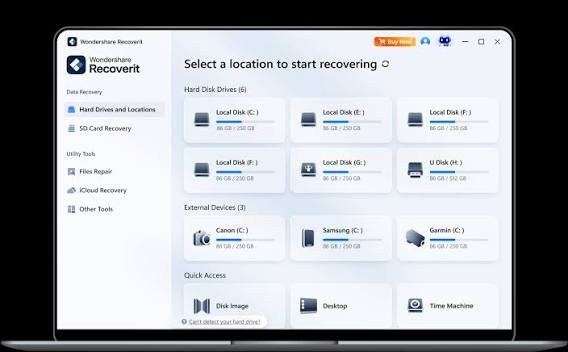
Step 1: Select a Recovery Location
After launching Recoverit on your Windows PC, the main interface displays all available storage locations, including local drives, external drives, USB devices, and desktop. Select the specific drive or folder where your data was lost.
Step 2: Scan the Selected Location
Click the Start button to begin scanning. Recoverit first performs a Quick Scan to locate recently deleted files. If needed, you can then initiate a Deep Scan to search for older or harder-to-find files. The scanning progress bar shows you the estimated time remaining, and you can filter results by file type during the scan.
Step 3: Preview and Select Files
Once the scan is complete, browse through the recovered file list. Use the built-in preview panel to confirm each file is intact before recovering it. You can also use the search bar and filter tools to quickly locate specific file names, types, or sizes.
Step 4: Recover and Save Your Files
Select all files you want to restore and click the Recover button. Choose a save location that is different from the original drive where the data was lost to avoid overwriting other recoverable files. Recoverit then copies the restored files to your chosen destination.
The entire process from launch to recovery typically takes just a few minutes for standard deletions, though Deep Scans on large drives may take longer depending on drive size and system speed.
Wondershare Recoverit Pricing and Plans
Recoverit offers a free version and several paid license tiers to suit different users and budgets.The Free version is fully functional but limits total data recovery to 100 MB. It is ideal for testing the software or recovering a small number of files.The Essential plan covers basic recovery needs with no data limit and supports standard scan modes.The Standard plan adds deeper recovery capabilities suitable for most home and office users.The Pro and Advanced plans unlock all features including Advanced Video Recovery, system crash recovery, BitLocker support, and disk image recovery.
These plans are available as monthly subscriptions, annual licenses, or lifetime purchases.A free trial lets you scan your drive and preview all recoverable files without paying anything, so you can verify recovery is possible before making any purchase decision.
Frequently Asked Questions About Wondershare Recoverit for Windows
Can Recoverit recover files from a formatted drive?
Yes. Recoverit can recover data from formatted drives as long as the storage sectors have not been completely overwritten by new data. After formatting, avoid saving new files to the drive and run a Deep Scan as soon as possible to maximize your chances of recovery.
Is Wondershare Recoverit safe to download and use?
Yes. The official Recoverit installer passes all major security checks including VirusTotal scans. The software carries over 35 patents and is used by millions of users worldwide. Always download from the official Wondershare website or verified platforms like the Microsoft Store to ensure you get the genuine, malware-free version.
What devices does Recoverit support on Windows?
Recoverit supports more than 2,000 storage devices on Windows, including internal hard drives, SSDs, USB flash drives, SD cards, microSD cards, external hard drives, digital cameras, drones, and memory sticks from brands like SanDisk, Samsung, Kingston, and others.
Can I recover data from a crashed Windows computer?
Yes. Recoverit includes a System Crash Recovery feature. You create a bootable USB drive on a working computer, boot the crashed machine from that USB, and use Recoverit to scan and recover files even when Windows cannot start.
Does Recoverit work on Windows 11?
Yes. Recoverit fully supports Windows 11, Windows 10, Windows 8.1, and Windows 7 in both 32-bit and 64-bit editions.
How long does the scan take?
A Quick Scan on a typical drive takes a few minutes. A Deep Scan may take anywhere from 20 minutes to several hours depending on the size of the storage device and the speed of your computer. You can pause and resume scans at any time.
Tips to Maximize Data Recovery Success with Recoverit
Stop using the affected drive immediately after data loss. The more data written to the drive after deletion, the lower the chance of a successful recovery.Run Recoverit as soon as possible after discovering data loss. Time is a critical factor in recovery success.Always save recovered files to a different drive than the one being scanned.If the Quick Scan does not find your files, always proceed with a Deep Scan for more thorough results.
Use the file preview feature before recovering to avoid restoring unwanted or corrupted files.For physically damaged drives, use the Disk Image feature to create a backup copy and recover from the image instead of directly from the damaged hardware.
Conclusion
Wondershare Recoverit for Windows is a comprehensive, powerful, and user-friendly data recovery solution trusted by home users and professionals alike. With support for over 1,000 file types, more than 2,000 storage devices, advanced video recovery, system crash recovery, and a deep-scan algorithm that delivers recovery rates up to 99.5 percent, it ranks among the best data recovery tools available for Windows in 2026.
The free download lets you scan your drive and preview recoverable files at no cost, making it risk-free to try before you buy. Whether you lost photos, videos, documents, or an entire partition, Wondershare Recoverit gives you the best possible chance of getting your data back in just three simple steps.
